
Team & invitations
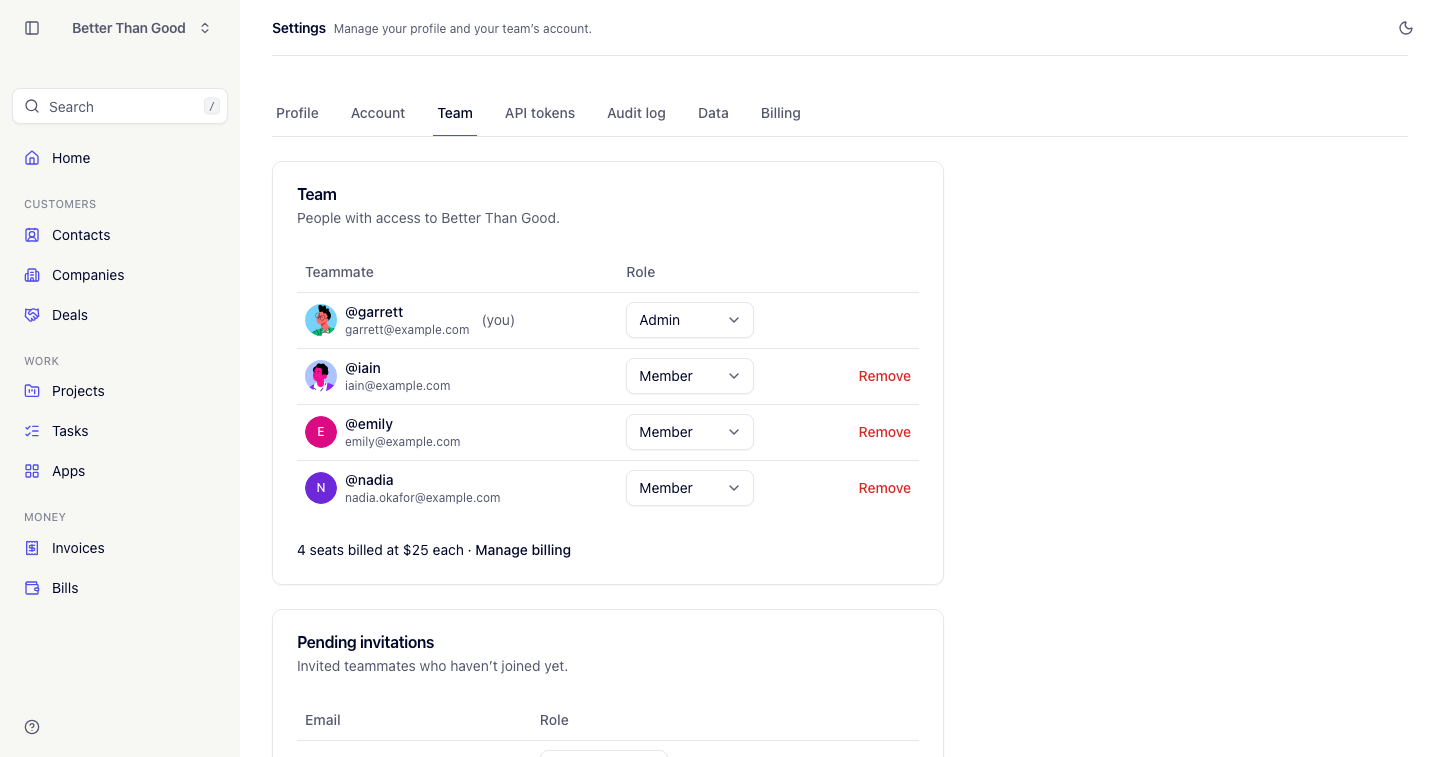
Settings → Members lists everyone on the account with avatar, name, email and role.
Roles
| Admin | Member | Contractor | |
|---|---|---|---|
| Contacts, companies, deals, invoices, bills | Full access | Full access | No access |
| Projects and tasks | All tasks; can assign to anyone; can reorder | All tasks; can assign to anyone; can reorder | Own tasks only; self-assigned |
| Apps | Full access | Full access | No access |
| API tokens | All tokens in the account | Own tokens only | Own tokens only |
| Account, Billing, Audit log, Data | Yes | No | No |
| Invite and remove teammates | Yes | No | No |
Admins run the account. Members are full teammates who see and work everything except account settings. Contractors only see the delivery work they are added to.
Invitations create members by default. An admin can invite a contractor by selecting the role on the invitation form.
Inviting someone
Press Invite a teammate, enter an email address and press Send invitation. The link is valid for 7 days.
- A person without a WORK login sets a password and joins.
- A person with an existing login gains access to the account. If they are signed in as that user, they are switched into it.
- The invitation only works for the address it was sent to.
Pending invitations are listed in their own card with Resend and Cancel.
Your email address must be verified to send an invitation. On the free plan, an invitation that would take the account past its 3 people limit is refused until the account upgrades to Pro. Cancelling an invitation is always available.
Invitations are rate-limited to 10 sends and 5 resends per hour.
Removing someone
Remove on a row, with a confirm. You cannot remove yourself.
Removing a teammate keeps their notes and tasks, retaining their name on both. Their tasks are unassigned and they are dropped from every project roster, so work that still needs doing shows as unassigned rather than sitting with someone who can no longer reach it.
People
The footer of the Members screen shows the number of people on the account. On the free plan it shows the count against the 3 people limit; on Pro people are unlimited (see Billing & plan).