
Tasks
A task is a unit of work. A task can belong to a project or to none, in which case it shows as “No project”.
Creating a task
In a project, New task in the task tab opens a slide-over with all fields. The quick-add row at the top of the list takes a title, and optionally an assignee and due date.
Outside a project, use the Tasks screen. The Project field can be left empty.
| Field | Notes |
|---|---|
| Title | Required |
| Body | Detail, links, context |
| Project | Optional |
| Assignee | Admins and members can assign to anyone. Contractors’ tasks are assigned to themselves |
| Due date |
Completing a task
Each task row has a checkbox. Ticking it marks the task done, removes the row from the Open tab and shows a toast with an Undo button.
Unticking a completed task reopens it. Both actions appear on the project’s activity feed and in Recent activity on Home.
The Tasks screen
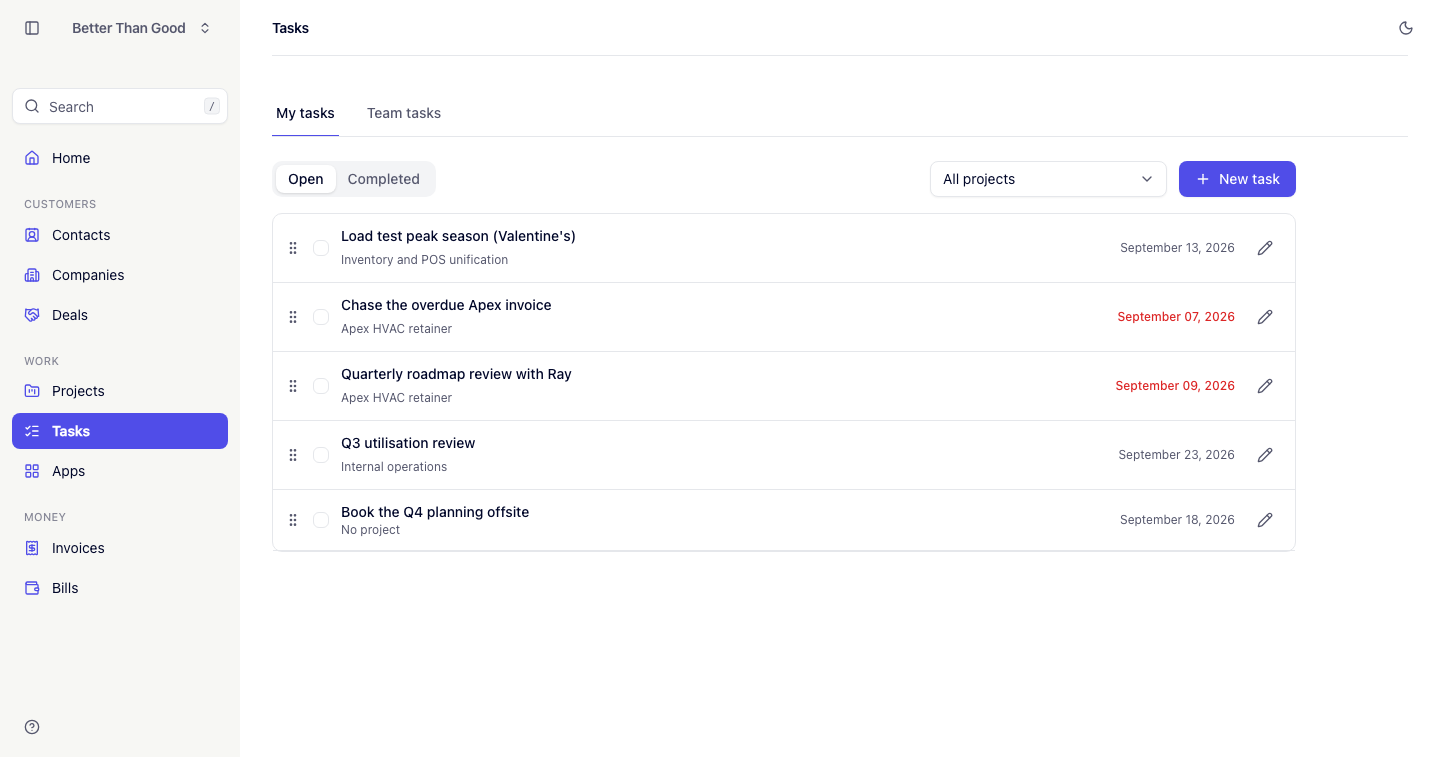
- Open lists your incomplete tasks in an order you set by dragging. This order is personal and does not affect other users.
- Completed lists your finished tasks, most recent first.
- Project filter: All, a specific project or No project. The filter is hidden until the account has at least one project.
Admins and members on team accounts also have a Team tasks tab with a person filter: Everyone, Unassigned or a teammate. Team tasks are sorted by due date, soonest first.
Rows show the drag handle, checkbox, title, project or “No project”, assignee avatar on team views and due date. A task due today is emphasized; one past its due date turns red. Both read the date in the account’s timezone, so “today” matches the count on Home.
With no assigned tasks, the tab reads “Nothing assigned to you right now.”
Ordering within a project
A project’s Open list has one order, shared by everyone on the account. Only admins and members can change it.
Your personal queue order on the Tasks screen is separate from the project order.
Roles
- Admins and members see every task in the account, can assign tasks to anyone and can reorder a project’s list.
- Contractors see only tasks assigned to them. Tasks a contractor creates are assigned to themselves.
Task detail
Opening a task shows the full form and a comments timeline — Markdown entries newest first, each with its author and a relative timestamp. The delete link is at the bottom of the edit slide-over.
Removing someone from the account unassigns their tasks rather than deleting them. Each task keeps that person’s name for the record, and drops out of their personal queue order.
Overdue tasks
Your incomplete tasks past their due date are counted under Needs attention on Home.