
Contacts
A contact is a person. Deals name a contact, invoices are addressed to one and notes attach to one.
Adding a contact
Press New contact. The form opens in a slide-over over the current page.
| Field | Notes |
|---|---|
| First name | Required |
| Last name | |
| Required to send this person an invoice | |
| Phone | |
| Title | Job title |
| Company | A company in this account |
Press Create contact. The list updates and a toast confirms.
To add a person to a company you are already viewing, use Add contact on the company page, which pre-fills the company (see Companies).
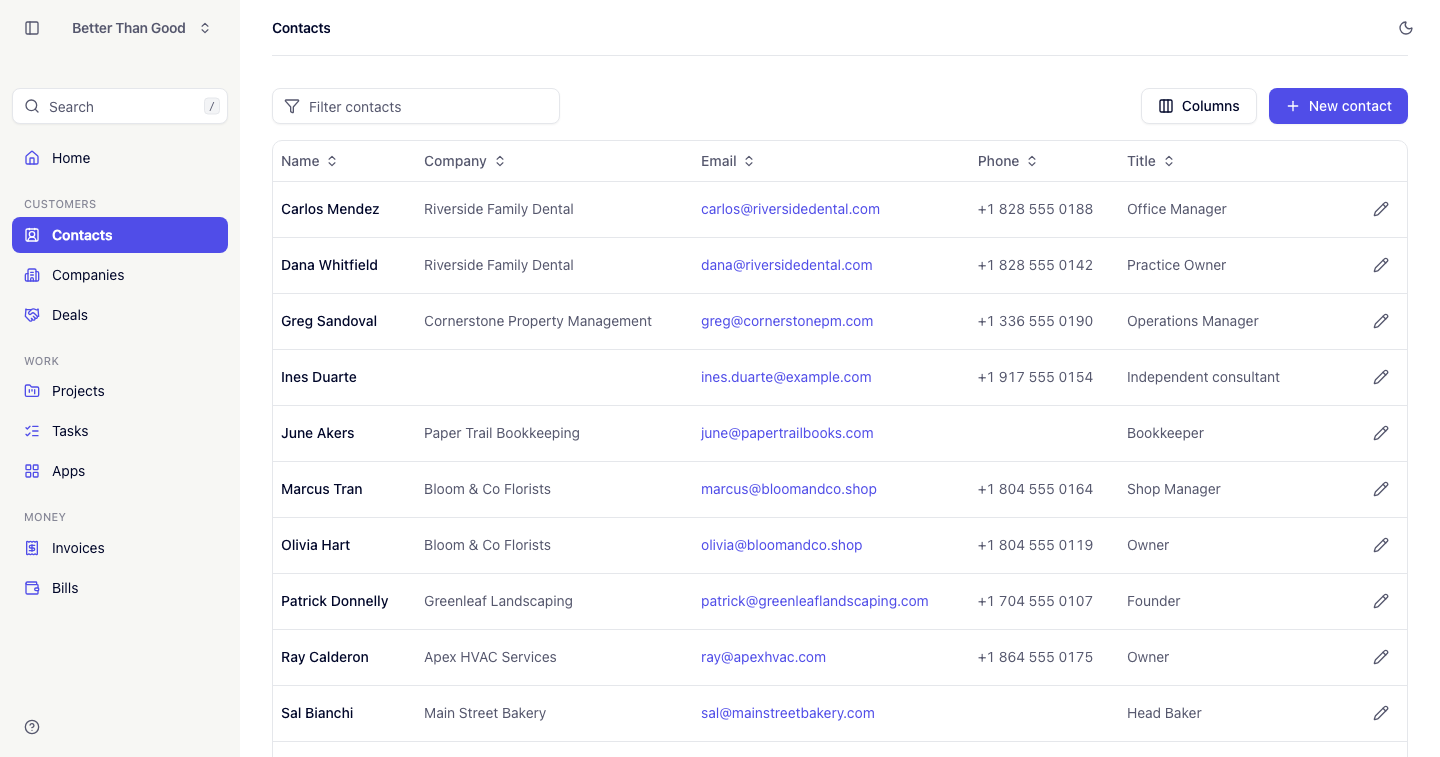
The contacts list
- Filter: narrows the list as you type. Matches first name, last name, email and company name.
- Sort: click Name (default), Company or Email. Click again to reverse.
- Columns: the column picker hides and shows columns. The setting is saved per user. Name cannot be hidden.
- Pagination: 25 rows per page. Options are 10, 25, 50 and 100.
- Edit: the pencil icon on a row opens the slide-over.
Filtered and sorted lists are bookmarkable URLs, and the Back button returns to the previous state.
The contact page
Two columns:
- Details: email, phone, title and company as a link. Empty fields show a dash. Edit is in the footer.
- Notes: a timeline of entries, newest first. Write one in the composer and press Add note. Markdown is rendered. Each note shows its author and a relative timestamp, and can be deleted with a confirm.
Editing and deleting
Edit from the pencil on a row or the Edit button on the contact page. Delete from the bottom of the edit slide-over, with a confirm.
Deleting a contact:
- Deals and invoices naming the contact are kept, and no longer reference a contact.
- The contact’s notes are deleted.
To remove someone from a company without deleting them, clear the Company field.