
Braindrops
The Braindrops screen is the active list: every drop you’ve captured that isn’t archived. Nothing here is a form; every change applies immediately.
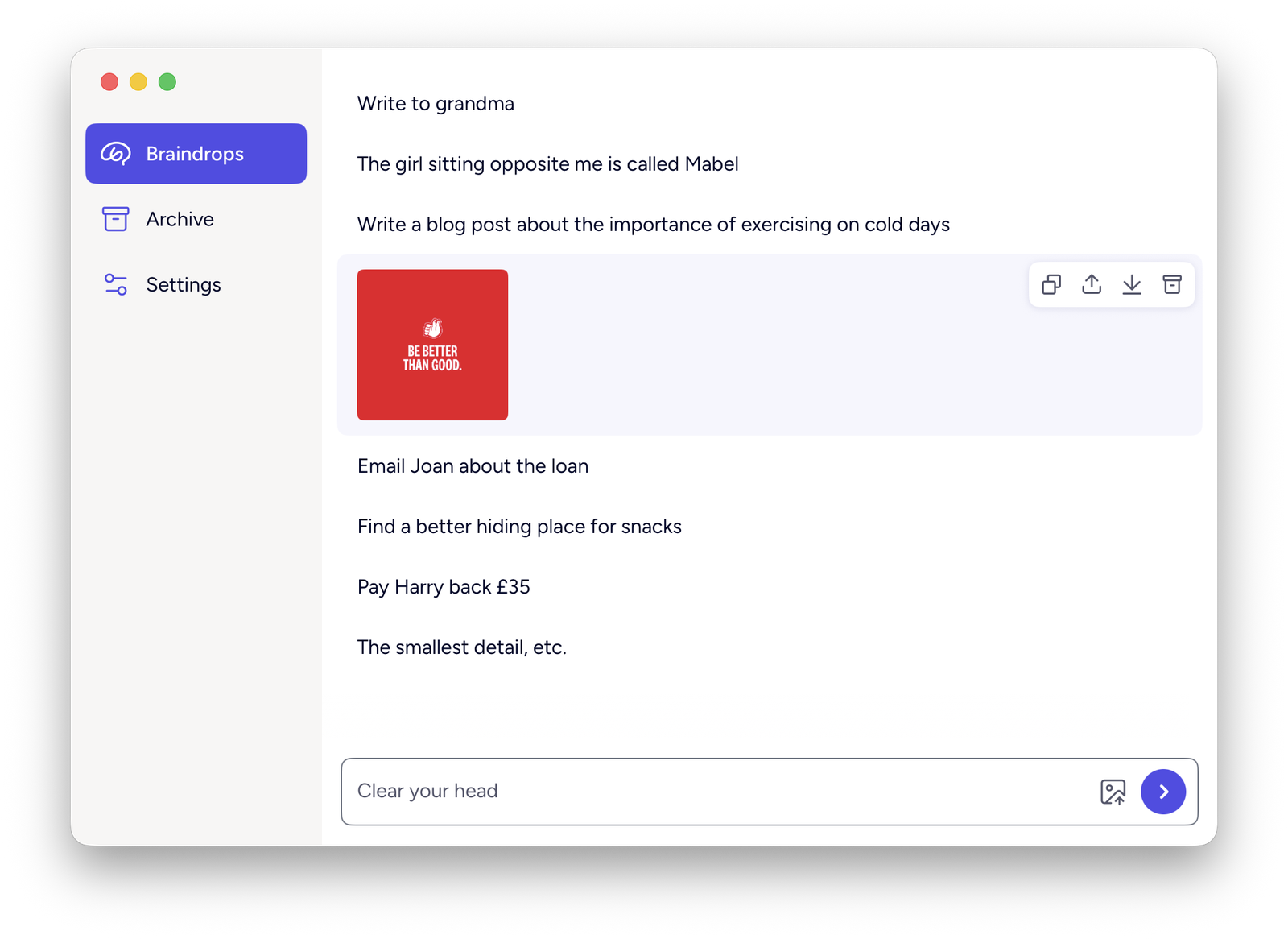
Capture
Type into the field at the bottom and press Return. The field grows as you type past one line, up to a maximum height, then scrolls. Shift+Return inserts a newline.
Content must be 4–900 characters after trimming whitespace. A drop that’s blank, too short or too long shows an inline message and isn’t saved; the field is left as you typed it so you can fix it.
New drops append to the bottom of the list, and the list scrolls to reveal the one you just added. That scroll is the only confirmation; there’s no toast for a normal capture.
Expand and collapse
Each drop collapses to a single ellipsized line. Click it to expand in place and see the full content; click again to collapse.
Content between backticks renders in monospace, and a bare http:// or https:// URL becomes a tappable link — both in the collapsed and expanded view.
Edit
Double-click a drop to open the full editor. Make your change and click Save, or Cancel to discard it. Esc also cancels.
The same 4–900 character rule applies; an invalid edit shows an inline message and isn’t saved.
Editing isn’t available for image drops or for drops already in the Archive.
Reorder
Drag any drop to move it. The order is exactly what you set: Braindrop never re-sorts by date or anything else.
Dragging is the only way to reorder from the list. From a drop’s context menu (or the keyboard), Move Up and Move Down step it one place at a time.
Row actions
Hover a drop to reveal a small actions pill at its top-right:
| Action | What it does |
|---|---|
| Copy | Copies the drop’s text (or image) to the clipboard |
| Share | Opens the macOS share sheet — Mail, Messages, AirDrop and anything else registered |
| Edit | Opens the full editor (text drops only) |
| Archive | Moves the drop to the Archive |
Image drops show Download in place of Edit — see Images.
Delete
Deleting a drop happens from the Archive, not from the active list — see Archive.