
Archive
Archiving takes a drop out of the active list without deleting it. Archived drops live on the Archive screen until you restore them, delete them, or they age past the retention window.
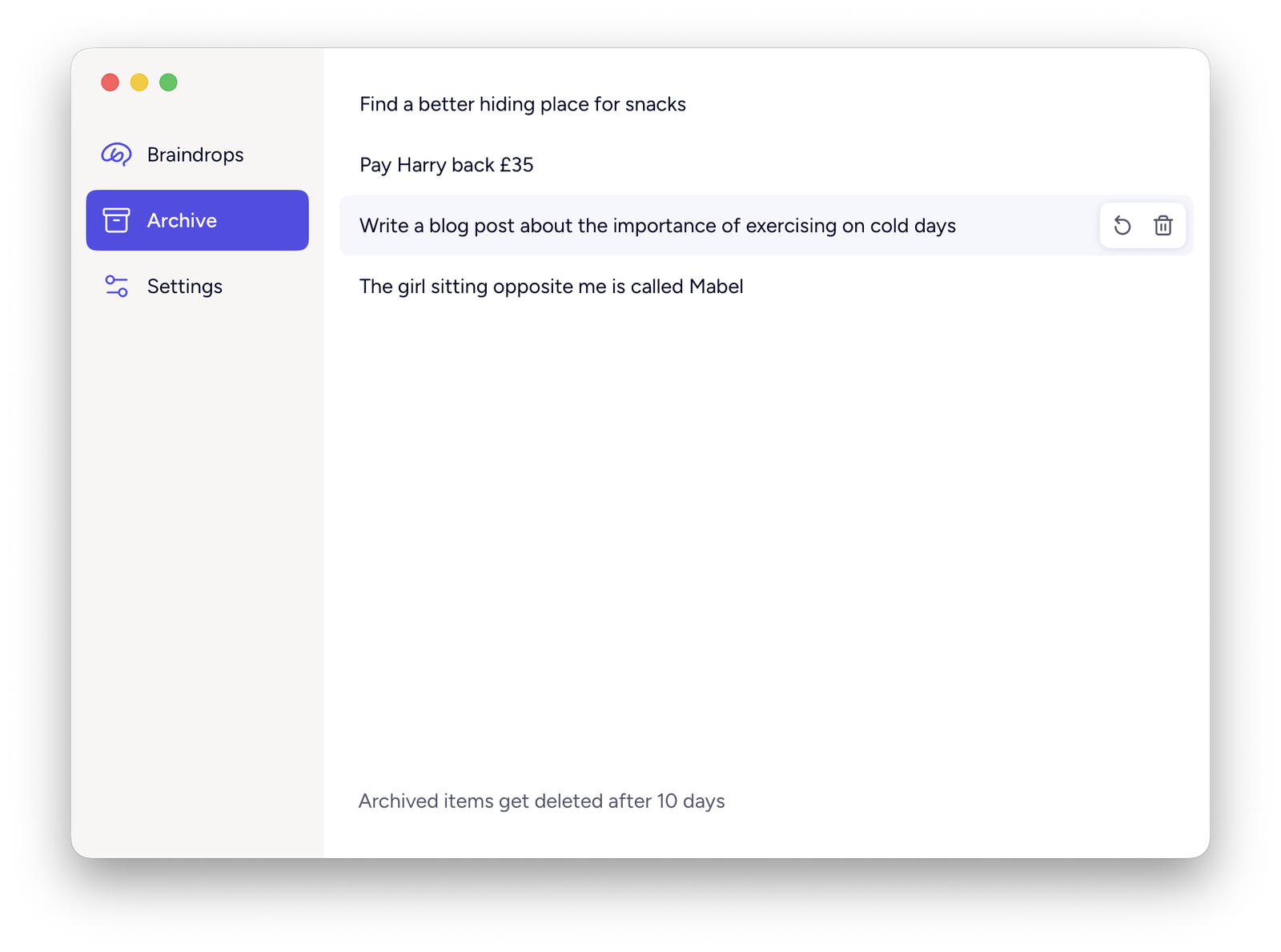
Archive a drop
Click Archive in a drop’s actions pill, from the Braindrops list. It moves to the bottom of the Archive, keeping its content and order relative to other archived drops.
Restore a drop
On the Archive screen, click Restore in a drop’s actions pill. It moves back to the bottom of the active Braindrops list.
Delete a drop
Click Delete in an archived drop’s actions pill to permanently delete it. There’s no confirmation and no undo.
Drops can only be deleted individually or all at once (below) — they can’t be deleted directly from the active list; archive first.
Delete everything at once
At the bottom of Settings, Delete all removes every archived drop immediately, with no confirmation. Active drops are never touched. The button only appears when there’s something archived to delete.
Auto-purge
Archived drops are deleted automatically once they’ve been archived longer than your retention window — 5, 10 or 30 days, set in Settings (10 by default). The Archive screen’s footer states the current window.
Purging runs once when the app launches and every 24 hours it keeps running. Only the age since archiving matters — active drops are never purged, no matter how old.
The retention window is the one setting that deletes data, so it syncs across your Macs through iCloud rather than being set per-device: change it on one Mac and it applies everywhere the account is signed in, before either one purges.